
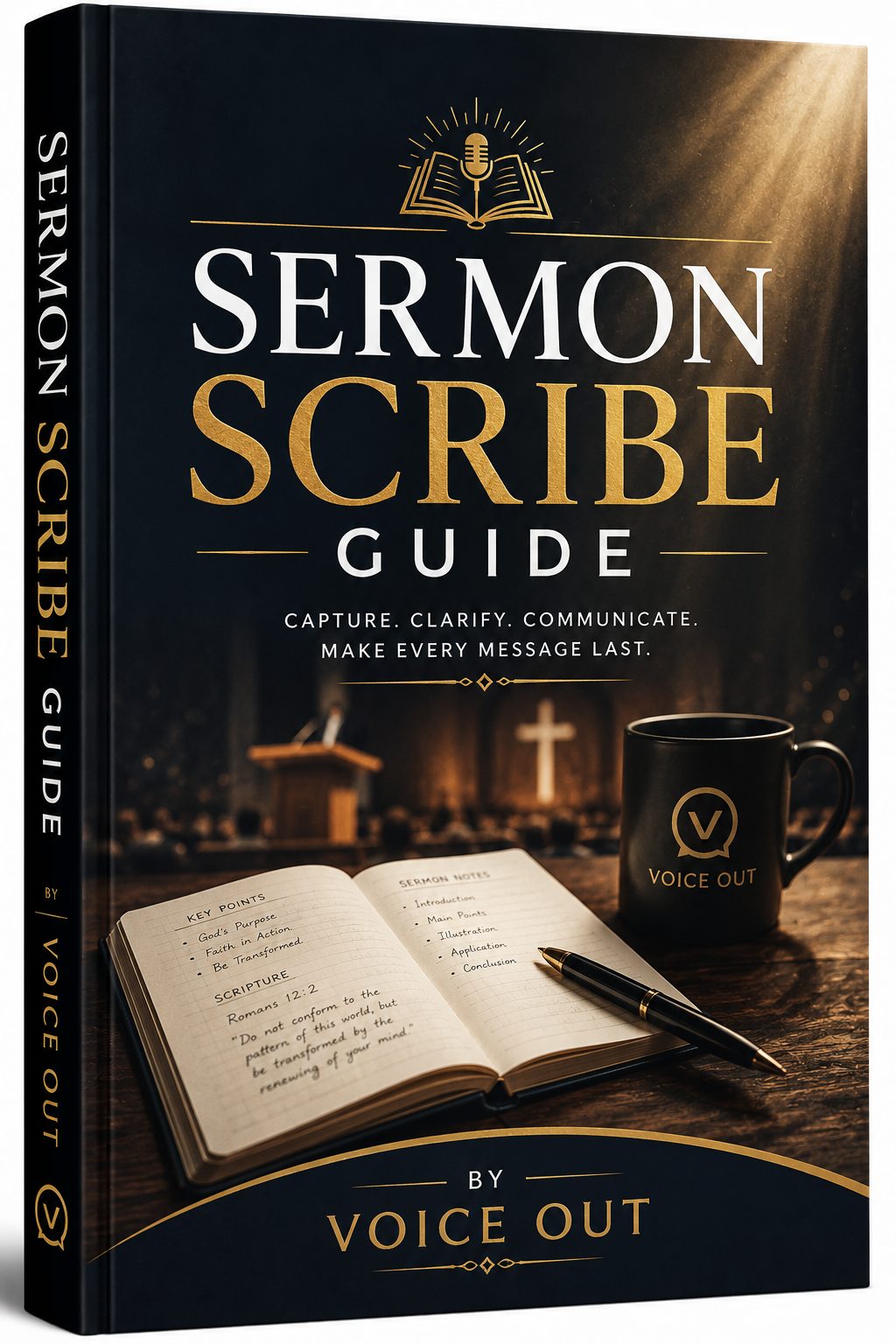
Published book
Sermon Scribe Guide
By Voice Out17 chaptersSeptember 2, 2026
A book from the uploaded manuscript “VOICEOUT USER GUIDE” by Voice Out.
Share this book
Post the public link. Facebook, WhatsApp, X, and LinkedIn pull the cover as the thumbnail.
Contents
17 chapters
- 01VOICEOUT USER GUIDEHow to use VoiceOut Preach It. Capture It. Publish It. An illustrated walkthrough from a live sermon to a published book. 1 Live 2 Library 3 Analysis 4 eBook 5 Publish voiceout.live/guide Contents 01 The path from…
- 02STEP 01The path from pulpit to book Voice Out: capture the message while you preach, keep a sermon library, review an AI draft, then publish a book your people can search and keep.
- 03Convert the sermon into an eBook, design a cover, and publish it.Voice Out: Start a live sermon VoiceOut user guide · voiceout.live/guide
- 04STEP 02Set up your ministry Signup creates a workspace for your church or personal ministry. Finish the church profile so published books carry the right name and branding.
- 05Create an account and complete onboarding with your ministry name.2. Open Church to set the public name, website, country, language, and brand color. 3. Update Profile and Security under Settings when you need a new name, photo, or password. 4. Reader accounts can view sermons and…
- 06STEP 03Capture a live sermon Live Sermon uses the microphone. Speak into the pulpit mic or a headset. Captions stream as you teach and stay with the sermon when you stop.
- 07The sermon lands in My Sermons with the live transcript attached.Voice Out: Open Live Sermon VoiceOut user guide · voiceout.live/guide
- 08STEP 04Review sermons and transcripts Every captured message lives in My Sermons. Open a sermon to edit the title, scripture, and notes, then clean the transcript before analysis.
- 09Correct names and scripture references while the message is still fresh.4. Publish a sermon when you want a public share link, or keep it in the workspace. Voice Out: Open My Sermons VoiceOut user guide · voiceout.live/guide
- 10STEP 05Run AI analysis Analysis turns the transcript into an outline, themes, and a scripture index. Treat it as a draft. Your edits stay unless you ask AI to run again.
- 11When the draft is faithful, convert it to an eBook.Voice Out: Choose a sermon to analyze VoiceOut user guide · voiceout.live/guide
- 12STEP 06Turn a message into an eBook Build a book from a sermon, or upload a PDF or text manuscript. Then edit chapters and design a cover before anyone else sees it.
- 13Open Cover to set the title treatment, then preview the reader.Voice Out: Open eBooks VoiceOut user guide · voiceout.live/guide
- 14STEP 07Publish and share Publishing puts the book on the public library at voiceout.live. Readers can search by title, author, or topic, open chapters, and send you a note.
- 15Open eBooks to read notes that readers leave on published chapters.Voice Out: Browse the public library VoiceOut user guide · voiceout.live/guide
- 16STEP 08Plans, messages, and settings Subscription shows your plan. Messages is how you request an upgrade and hear back from VoiceOut. Content Studio is reserved for a later phase.
- 17Open this guide anytime from the sidebar, or from your profile menu.Voice Out: View your plan VoiceOut user guide · voiceout.live/guide
A note for Voice Out
Write after you read
Send a word of thanks, a question, or a testimony. It goes to the speaker or publisher of this book.